Site-to-site tunnels
A site-to-site tunnel joins two networks permanently. Devices on one side reach private addresses on the other side, and nobody has to start a VPN app for it. People connected to your Stingray VPN can use the tunnel too, so one VPN connection gives them the office, the data centre and the cloud.
One end of a tunnel is always a Stingray host. What sits at the other end decides which kind of tunnel you create.
| The other end is | Create | Where in the dashboard |
|---|---|---|
| Another Stingray host of yours | A WireGuard tunnel | Site-to-site |
| A firewall, router or VPN gateway that is not Stingray | An IPsec tunnel | Site-to-site |
| An AWS VPC | A cloud connector | Cloud connectors |
| Azure or Google Cloud | An IPsec tunnel, until their connectors are available | Site-to-site |
Before you start
- A Stingray host that is online and has a public IP address.
- Networks that do not overlap. The networks on the two sides must differ from each other, from your VPN subnets and from every other tunnel on the same host.
- A role that is allowed to change hosts and VPN servers. Other roles can see tunnels but cannot create, change or delete them, and cannot read a preshared key.
- For an IPsec tunnel, the host must run the IPsec service. Hosts created recently have it. If your host is not offered when you create the tunnel, update it under Host updates.
WireGuard tunnel between two Stingray hosts
Use this when both ends are Stingray hosts in your account, for example a host in a cloud region and a host at your office.
- Open Stingray, then Site-to-site, and add a tunnel.
- Under Tunnel type, choose WireGuard.
- Fill in the tunnel:
| Field | What to enter |
|---|---|
| Tunnel name | A name you will recognise in the list. |
| Tunnel subnet | A small private network used only by the two ends of the tunnel, for example 10.100.0.0/24. It must not be in use anywhere else. |
- Fill in the two sides. The dashboard calls them the cloud side and the on-prem side. Both are Stingray hosts.
| Field | What to enter |
|---|---|
| Host | The Stingray host at this end. |
| Internal IP | The address of this end inside the tunnel subnet, for example 10.100.0.1 on one side and 10.100.0.2 on the other. |
| Listen port | The UDP port the host listens on for this tunnel. The default is 51820. |
| Endpoint (on-prem side only) | The public address the other host uses to reach this one. It is filled in from the host. Change it if the host sits behind NAT. |
| Routes | The networks behind this host that the other side should reach, separated by commas. |
- Choose Create tunnel.
The tunnel appears in the list as provisioning and turns online once both hosts have set it up.
If one of the hosts sits behind a firewall of your own, allow its listen port (UDP) from the other host.
IPsec tunnel to an external gateway
Use this to connect a Stingray host to equipment from another vendor: an office firewall, a data-centre router, or the VPN gateway of a cloud provider. The tunnel uses IKEv2 with a preshared key.
Step 1: create the tunnel in the dashboard
- Open Stingray, then Site-to-site, and add a tunnel.
- Under Tunnel type, choose IPsec. Under Far end, External gateway is selected.
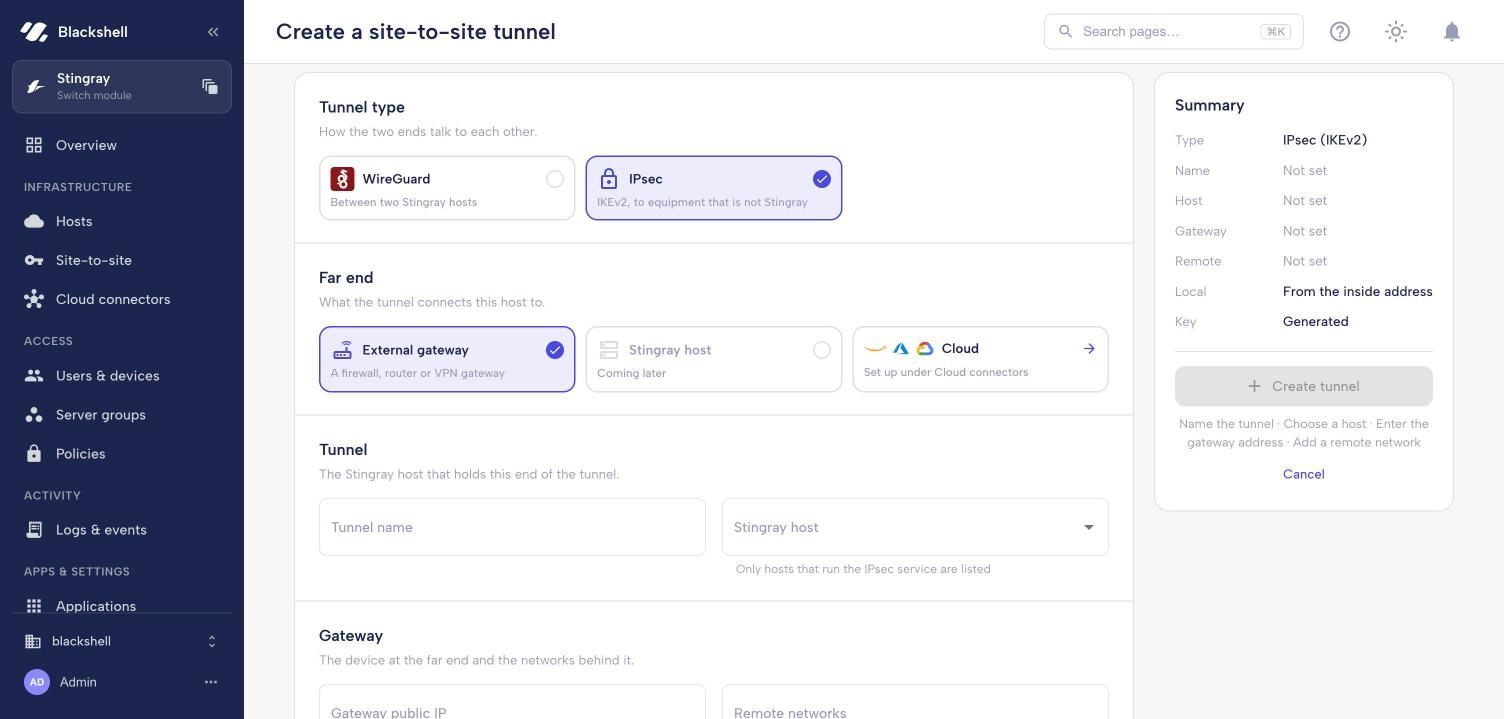
- Fill in the form:
| Field | What to enter |
|---|---|
| Tunnel name | A name you will recognise in the list. |
| Stingray host | The host that holds this end of the tunnel. Only hosts that run the IPsec service are listed. |
| Gateway public IP | The public address of your gateway. |
| Remote networks | The networks behind the gateway that should be reachable through the tunnel, for example 10.20.0.0/16. |
| Local networks (optional) | The networks on the Stingray side that the gateway should see. Usually these are the subnets of your VPN servers. |
| Inside address (optional) | Only when your gateway gives the tunnel its own pair of addresses, for example 169.254.10.2/30. It cannot be changed after the tunnel is created. |
| Preshared key (optional) | Leave it empty and Stingray generates a strong key. If you enter your own, it must be 32 to 128 characters without spaces. |
- Choose Create tunnel.
The defaults under Advanced settings suit most gateways. Open them only when your gateway needs something else:
| Setting | When to change it |
|---|---|
| IKE (phase 1) and ESP (phase 2) | Your gateway does not offer the default suite. See the list of supported settings below. |
| Local ID, Remote ID | Your gateway identifies itself with something other than its public address, which is common behind NAT, or expects a specific identity from Stingray. |
| IKE rekey time, ESP rekey time, dead peer delay | Your security policy asks for other timers. |
| Negotiate the listed networks exactly | Your gateway is policy-based and accepts only the exact networks. List your local networks when you turn this on. |
| Only answer | The gateway must be the one that starts the tunnel. |
Step 2: configure your gateway
Open the tunnel in the dashboard. Its page shows everything the gateway needs. If Stingray generated the key, choose Show key to read it.
| On your gateway | Value |
|---|---|
| IKE version | IKEv2 |
| Authentication | Preshared key, the same key as on the tunnel page |
| Remote gateway (peer) | The public address of the Stingray host |
| Phase 1 (IKE) | AES-256-GCM, PRF SHA-384, DH group 20, unless you chose another suite |
| Phase 2 (ESP) | AES-256-GCM, PFS group 20, unless you chose another suite |
| Lifetimes | Stingray renews the keys after 4 hours (IKE) and 1 hour (ESP). Use the same or longer lifetimes on the gateway. |
| Dead peer detection | On. Stingray checks every 10 seconds. |
| Local networks | The Remote networks you entered in Stingray |
| Remote networks | The Local networks you entered in Stingray |
| Firewall | Allow UDP 500, UDP 4500 and ESP (IP protocol 50) between the gateway and the Stingray host |
Your gateway must also route the Stingray networks back into the tunnel. On many gateways this is a static route next to the tunnel.
Supported settings
| Supported | |
|---|---|
| Key exchange | IKEv2. IKEv1 is not supported. |
| Authentication | Preshared key |
| Encryption | AES-256-GCM, for both phases |
| PRF (phase 1) | SHA-384, SHA-256, SHA-512 |
| DH and PFS groups | 19, 20 and 21 (elliptic curve), 14, 15 and 16 (MODP) |
| Addressing | IPv4 |
Older settings such as 3DES, SHA-1 or DH groups below 14 are not offered, because they no longer protect traffic well enough.
By default the tunnel is route-based: the two ends agree to carry any traffic, and Stingray sends only the remote networks into it. Policy-based gateways need Negotiate the listed networks exactly.
What you should see
- The tunnel starts as provisioning and turns online when both ends have agreed on keys.
- The tunnel page shows since when it is up and how much traffic went through in each direction.
- From a device connected to a VPN server on that host, a private address on the other side answers.
If the server group uses split tunnelling, add the remote network to the networks that go through the VPN. Otherwise the device does not send that traffic into the VPN at all. See Split tunnelling.
Changing or removing a tunnel
- Edit changes the name, the networks, the key and the advanced settings. A change interrupts traffic through the tunnel for a few seconds. Make the matching change on the other end.
- Delete removes the tunnel from the host. Remove it on your gateway too.
Good to know
- Routing is static. The networks you list are the networks that are reachable. BGP is not supported.
- A tunnel lives on one host. While that host is down, the tunnel is down.
- The preshared key is shown only to roles that may change tunnels. Treat it like a password: anyone who has it and can reach the host could set up the tunnel.
- IPsec between two Stingray hosts is not available yet. Use a WireGuard tunnel for that.
If it does not come up
| What you see | What to check |
|---|---|
| The host is not offered when creating an IPsec tunnel | The host does not run the IPsec service yet. Update it under Host updates. |
| A message about an overlap when creating | One of the networks is already used by a VPN server or another tunnel on that host. Networks must be distinct. |
| Stays offline | The key on both ends, the phase 1 and phase 2 settings on the gateway, and that UDP 500, UDP 4500 and ESP reach the host. |
| Stays offline, and the gateway is behind NAT | Set Remote ID to the identity the gateway sends, often its private address. |
| Online, but nothing answers | The route back on the gateway, the firewall rules behind it, and split tunnelling on the server group. |
| Online, but only some networks answer | With a policy-based gateway, the networks on both ends must match exactly. |
| Failed | The host did not take the change. Check that the host is online, then save the tunnel again. |
If the tunnel still does not come up, contact us with the name of the tunnel and the time you tried.